
Accessing the Administrator
To verify that the OIE server is available, open a browser and enter the URL from the startup output, https://<host>:8443/. See Server Process Management if it is not up yet.
After accepting the self-signed certificate in your browser, you will see this page:
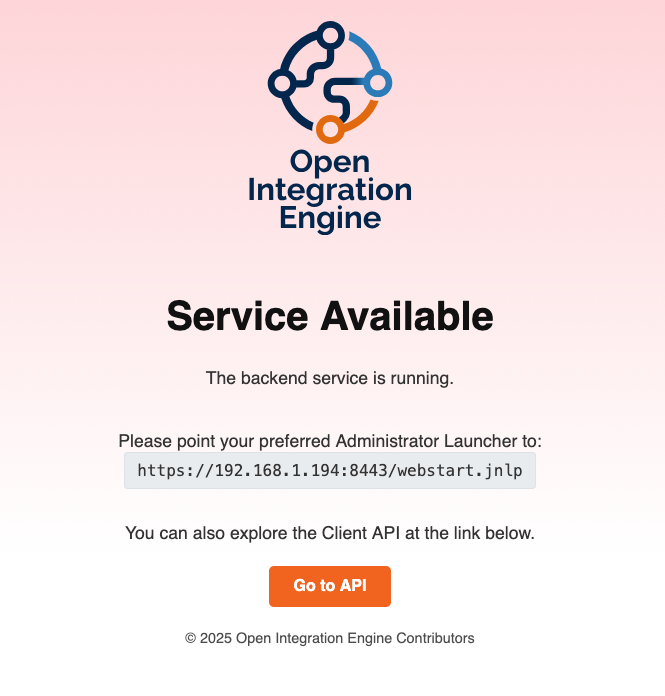
From here there are two ways to administer the engine: a browser, or the desktop Administrator.
Web Administrator
Web Support is a community extension by Chris Gibson that installs a browser-based administrator into the engine's own web server. It works read/write against the same REST API as the desktop client, covering channel editing, deployment, and the message browser. It requires OIE 4.6.0.
Install it as you would any other extension, described in the plugin guide, then restart the engine and open https://<host>:8443/oie-webadmin/. No launcher is involved. See Web Administrator for what it covers.
Desktop Administrator
The desktop Administrator is a Java application and needs a launcher to start it. Copy the Administrator Launcher URL from the page above, then use one of the launchers below. See Launchers for the full list, and Desktop Administrator for a tour of the client.
Ballista
Ballista is an open-source Administrator launcher for Open Integration Engine built on Tauri.
Launcher
Launcher is a fork of Ballista, also built on Tauri and open source under MPL-2.0.
MCAL
The original Mirth® Connect Administrator Launcher by NextGen Healthcare (MCAL) works with OIE. Here is how you can use it to launch the OIE Administrator client GUI application.
Open MCAL. If it's the first launch, the left panel with connections is empty.
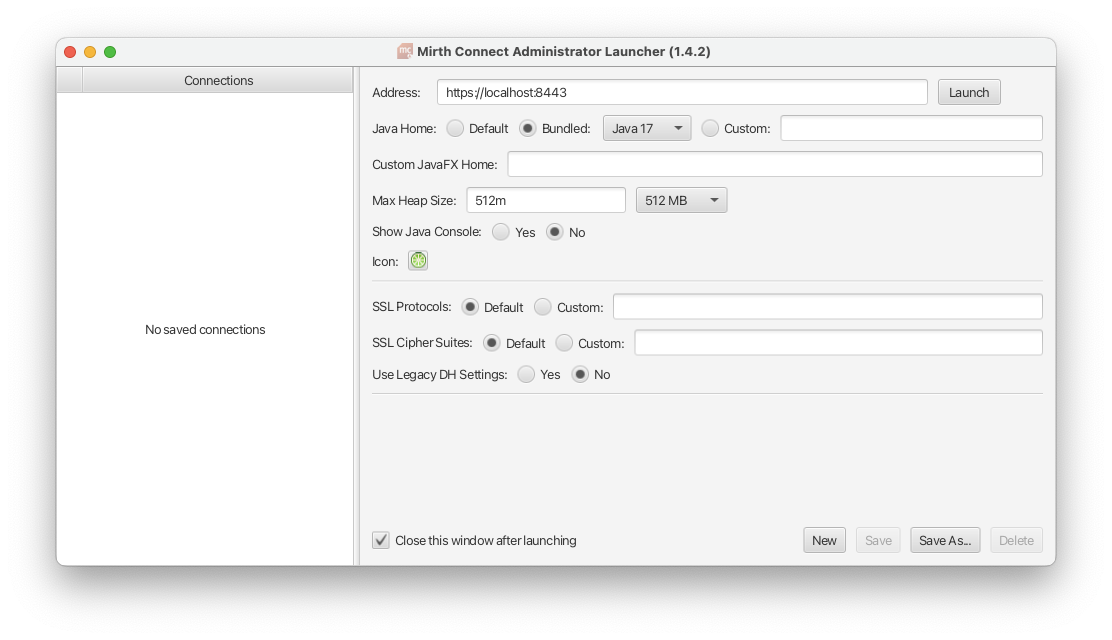
To work better with OIE, choose Bundled Java 17
And just click on Launch at the top right screen.
You should see a progress bar that will load the files necessary to launch the Open Integration Engine client.
Logging in
INFO
On 4.6.0 a new instance starts with:
- login: admin
- password: admin
A future release replaces this with a password generated on first boot.
Enter your credentials and click Login when the login screen appears. After a brief loading screen, you will see the OIE dashboard.
If this is your first login, you are prompted to change the default password.
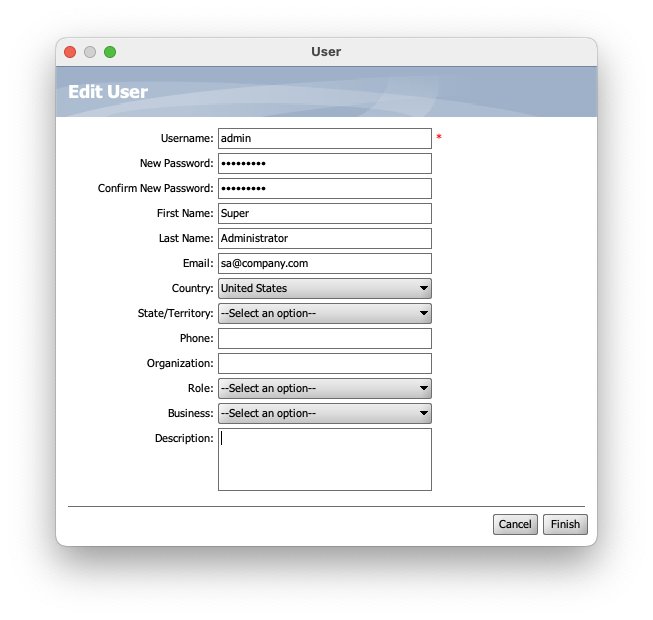
Fill the information, and don't forget to set the New Password (2 times)
And click on Finish
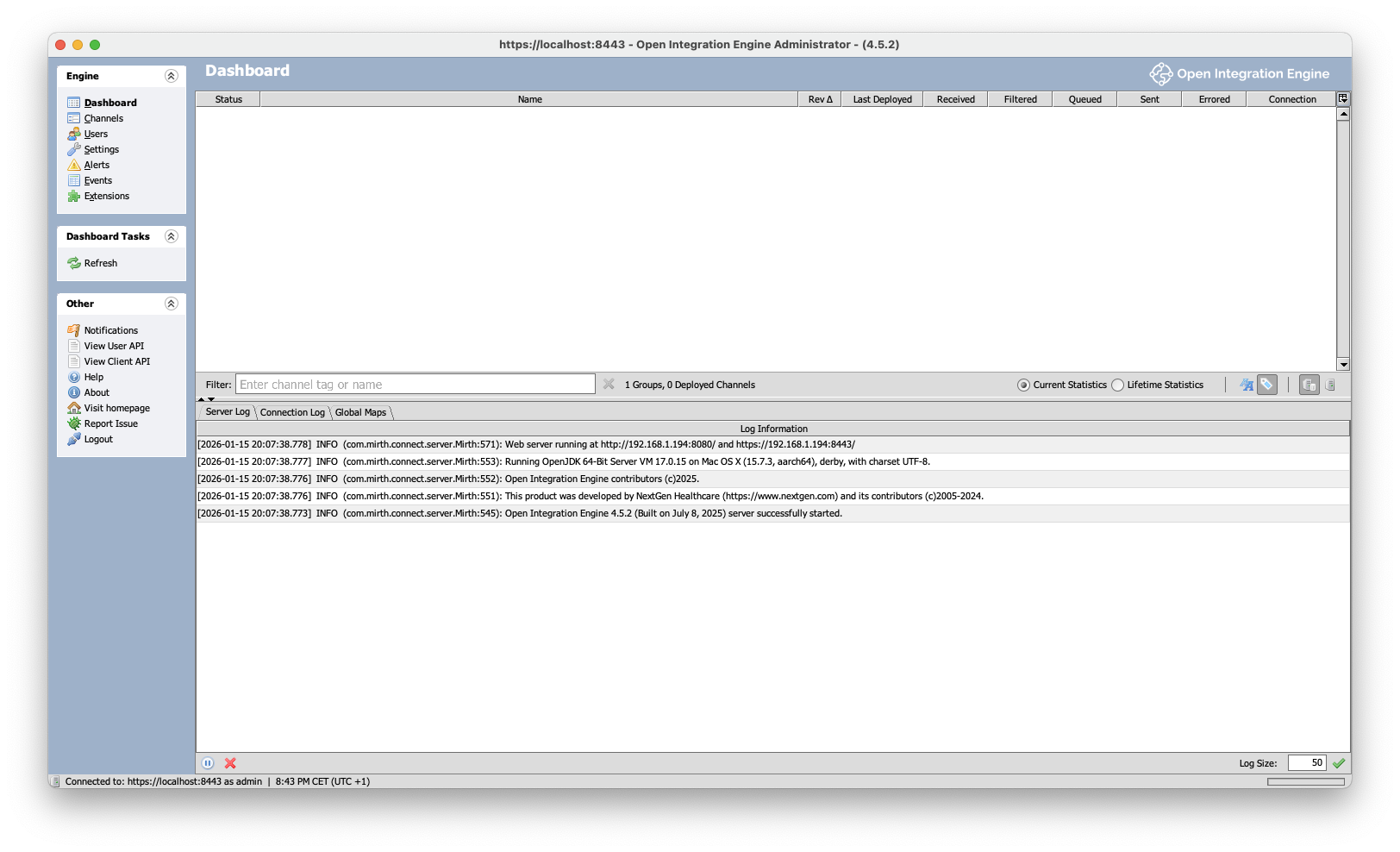
It's finished. Now you can start to use your OIE server.
Every account is an administrator
All users are administrators by default, with privilege to write and execute channel scripts on the server. Grant access only to users who should be able to author and execute scripts, or install an RBAC plugin to create low-privileged roles.
Role Based Access Control is a community extension that replaces the default authorization controller with roles and per-channel grants, and it works in both administrators.